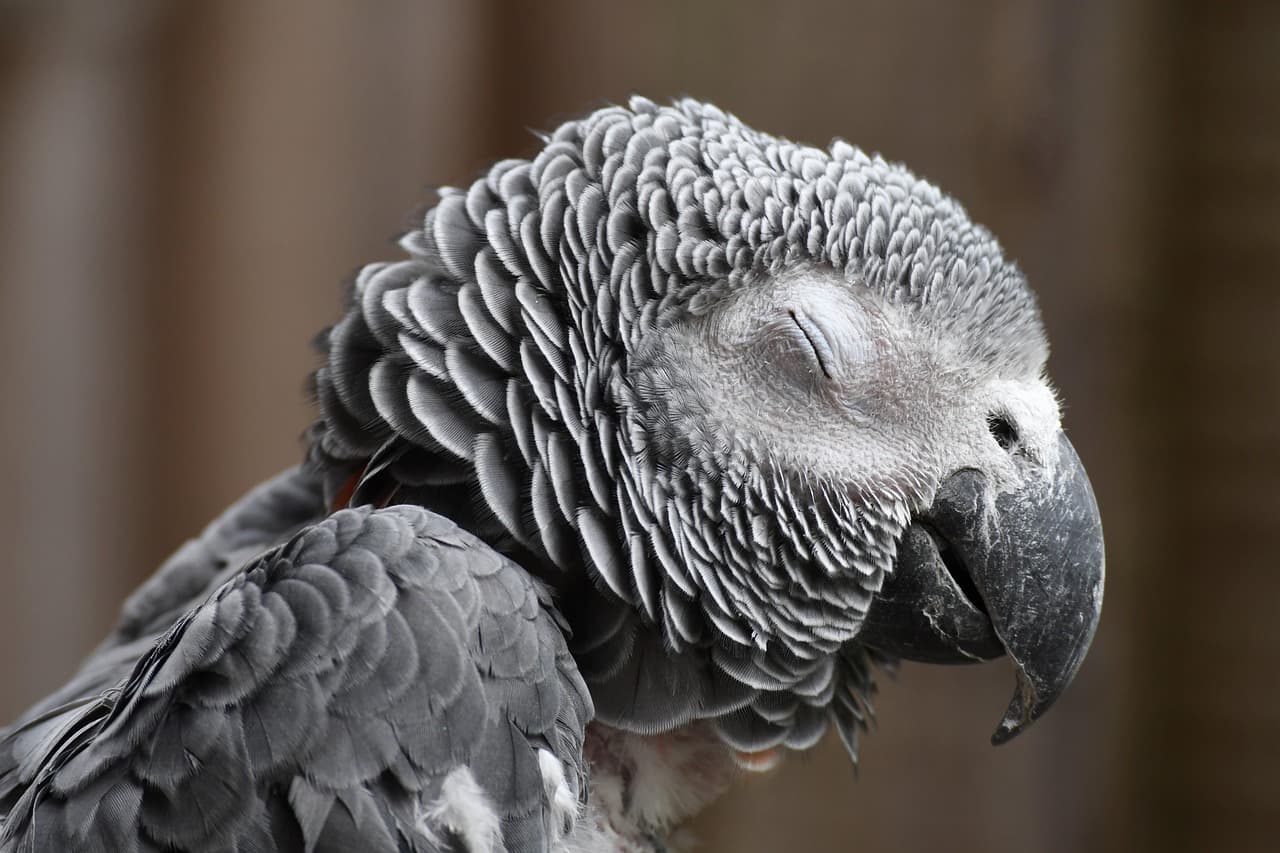
At the WeAreDevelopers World Congress North America closing keynote, the presenter used Claude Opus 5.5 to generate a pixel‑art kakāpō animation and then recorded a short video of that animation with Playwright via Claude Code so it could be embedded in a Keynote slide.
What happened and why it matters
For a STAR moment in the closing slide, the speaker referenced the record kakāpō breeding season in 2026 and wanted a playful pixel‑art scene to celebrate. The target was an HTML5 canvas animation showing at least 20 pixel‑art kakāpō jumping up and down with confetti and party effects.
Method: Claude Opus 5.5 for the pixel‑art animation
The presenter collected three kakāpō photos from Google image search and used them as input to Claude Opus 5.5 with a prompt asking for an animated pixel‑art scene on an HTML5 canvas featuring clearly pixelated kakāpō, at least 20 of them, jumping and celebrating with confetti. The resulting HTML page and transcript were judged to be a good result and the HTML was downloaded for inclusion in Keynote.
Method: Claude Code and Playwright to make the video
Because the presenter wanted a video file to place into Keynote, they asked a local Claude Code session to "Make me a video of file:///Users/simon/Downloads/kakapo-party.html - you need to load it in a browser and click on it a few times to get the confetti effect, the video should be 15s long. don't start clicking until 3s in. make sure several clicks are spread around the clickable area." Claude Code used Playwright to perform this automated recording and produced a video that met the presenter's needs.
Playwright script and technical details
The Playwright script was short and used Chromium in video‑recording mode. Key parameters and steps included:
- Viewport size: 1280 × 720.
- Video length: 15 seconds.
- File opened: file:///Users/simon/Downloads/kakapo-party.html.
- A sequence of mouse clicks with timestamps and coordinates (taken from the script):
- 3.0s: (640, 360) — center
- 4.2s: (160, 120) — top-left
- 5.4s: (1120, 120) — top-right
- 6.6s: (180, 600) — bottom-left
- 7.8s: (1100, 600) — bottom-right
- 9.0s: (640, 100) — top-center
- 10.0s: (380, 380) — mid-left
- 11.0s: (900, 380) — mid-right
- 12.2s: (640, 620) — bottom-center
- 13.2s: (640, 300) — near-center finale
The script used the Playwright sync API: it launched Chromium, created a new context with record_video_dir set to "vids" and record_video_size matching the viewport, opened the page, executed timed mouse.click calls, then closed the context and browser. The script ensured clicks did not start before 3 seconds and that clicks were spread across the canvas to trigger visual effects (confetti) as intended.
The presenter reports that the resulting Playwright‑recorded video was exactly what was needed for the final slide.
Conclusion
This example shows a compact pipeline: use a large model (Claude Opus 5.5) to generate an interactive HTML5 canvas animation from a few reference images, then use an automated browser controller (Playwright) — invoked by Claude Code in this case — to produce a video suitable for presentation software. The concrete instance began with three kakāpō photos, produced an animated canvas page, and ended with a 15‑second video created by a short Playwright script.
Tags
animation, speaking, ai, kakapo, playwright, generative-ai, llms, anthropic, claude, claude-code